 EN
EN


Brand
:
催眠小说合集
Product Code
:
17883
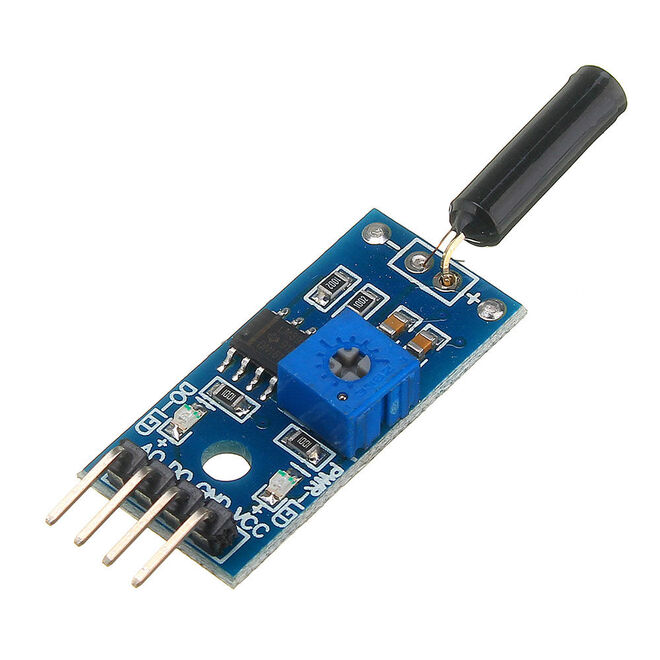
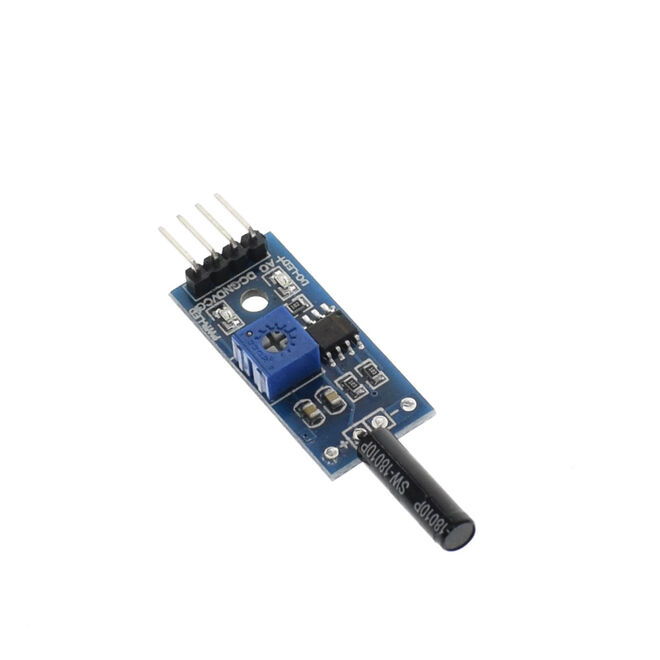
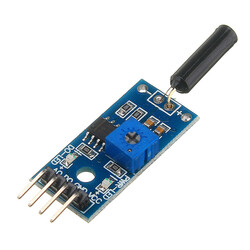
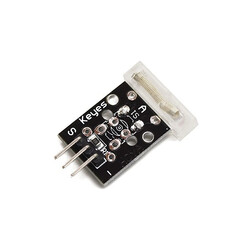
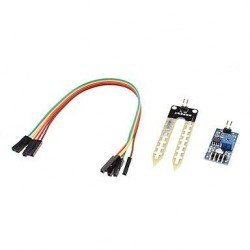
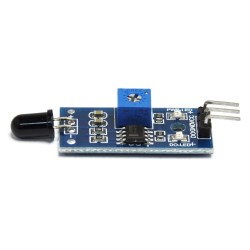
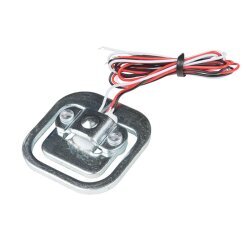
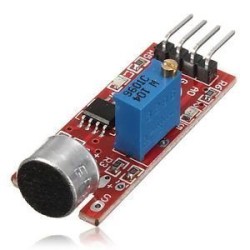
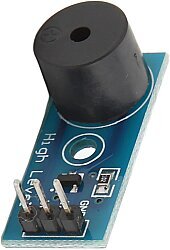
It comes with a M3 mounting hole for ease of attaching it to any object. A power LED and a status LED are attached to the module for visual indicator.
This module will output logic LOW when the sensor is tilted below the threshold angle; logic HIGH when it is tilted above the threshold angle. The threshold angle ranges from 45 degree to 130 degree. Aside from threshold angle, angular velocity also affect the tilt module. It can also be used as a vibration sensor, too!
This module can be interfaced with any microcontroller with digital input such as PIC, SK40C, SK28A, SKds40A, Arduino series for tilt detection capability. Also, not to forget, interfacing the module with a Relay module forms a tilt switch
Features:
* If the DO is not working, you might need to turn the on board potentiometer to center.
Application
Introduction
and slowly….. he or she becomes a sleeping beauty. It’s all cozy and nice until your lecturer bust you out. That would be embarrassing, eh?
Introducing the Lecture Alarm! An alarm that will automatically turn on whenever your head feels heavy and starts tilting.

Set up
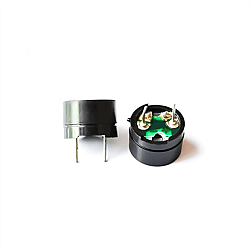
Components:

The diagram above shows the connection of the CT-UNO, Tilt sensor module and the buzzer.
Pin connection of Tilt Sensor Module

Pin connection of NPN transistor N2222
The diagram above shows the pins of the NPN transistor. Why do I use a transistor? To prevent high current sinking to occur. When dealing with buzzer, it is advisable not to connect it directly into your UNO or any microcontroller.
CT-UNO uses ATmega328p. Its maximum current per I/O pin is 40mA (Please note also: the maximum total supply is 200mA)
If you don’t know the specifications of the buzzer, you can manually measure it.
Step 2: Use a digital multimeter (DMM) to connect the ‘-‘ of the buzzer.
Step 3: The negative terminal of the DMM is connected to the negative terminal of the 5V power supply.

Measuring the current flowing through buzzer in 5V power supply (I = 2.93mA)
We can see that the current drawn by the buzzer is 2.93mA. Although it does not exceed the current limit of one arduino I/O pin can supply, it is still safer to put a transistor.
If the buzzer draw more current than the uC I/O can supply, you can try adding a resistor according to the current, but it probably wont work or work out of the specifications. A NPN transistor will help you.
Program
[code lang=”c” highlight=””]
#define Tilt 2 //Digital output from tilt sensor module is connected to D2
void setup() {
//setup the input or output pin
pinMode(Tilt, INPUT);
digitalWrite(BUZZER, LOW); //off LED
if(digitalRead(Tilt)) //if the DO from Tilt sensor is low, no tilt detected.
//You might need to adjust the potentiometer to get reading
digitalWrite(BUZZER,HIGH);
digitalWrite(BUZZER,LOW);
}[/code]
LCD Keypad Shield
You can also use an LCD to display some message. I am using a LCD Keypad Shield.

Set up
Set up diagram with LCD Keypad Shield
NOTE: LCD Keypad Shield is using pin 4 to pin 9. Do not use these pins for other purpose.
Program
[code lang=”c” highlight=””]
/*
The circuit:
* 16×2 character LCD to ARDUINO UNO
* LCD RS pin to digital pin 8
* LCD Enable pin to digital pin 9
* LCD D4 pin to digital pin 4
* LCD D5 pin to digital pin 5
* LCD D6 pin to digital pin 6
* LCD D7 pin to digital pin 7
* LCD R/W pin to ground
Tilt Sensor module to Arduino UNO
*VCC to 5V
*GND to GND
*Do to D2
*AO of tilt sensor is not used
*/
// include the library code:
#include
#define Tilt 2 //Digital output from tilt sensor module is connected to D2
// initialize the library with the numbers of the interface pins
LiquidCrystal lcd(8, 9, 4, 5, 6, 7);
void setup() {
//setup the input or output pin
pinMode(BUZZER, OUTPUT);
digitalWrite(BUZZER, LOW); //off LED
// set up the LCD’s number of columns and rows:
lcd.begin(16, 2);
lcd.print(” Lecture”);
lcd.print(” Alarm”);
delay(1000); //delay for 1 second
lcd.clear();
}
void loop() {
if(digitalRead(Tilt)) //if the DO from Tilt sensor is low, no tilt detected. You might need to adjust the potentiometer to get reading
digitalWrite(BUZZER,HIGH);
lcd.setCursor(0, 0); //move LCD cursor
lcd.print(“SLEEPING”); //Display message
}
else
{
digitalWrite(BUZZER,LOW);
lcd.setCursor(0, 0); //move LCD cursor
lcd.print(“AWAKE “); //Display message
}